
Configuration item properties for each coriolis meter device record can be accessed via the context menu. You can then edit or create records using a series of tabbed property pages. The property fields displayed on the Create New Configuration Log Entry or Edit Configuration Log Entry dialog box pages are the same. On each property page, configuration items not appropriate to the device type, or not applicable due to selected configuration item values, will be unavailable (dimmed).
You must have proper security authorization to edit configuration log entries. See FMS Security (and DEVCFG security event) for information about configuring security access.
The following configuration properties are available when creating, editing, or viewing configuration log entries for a Coriolis type gas meter.
Use the Record details button to access contiguous records.
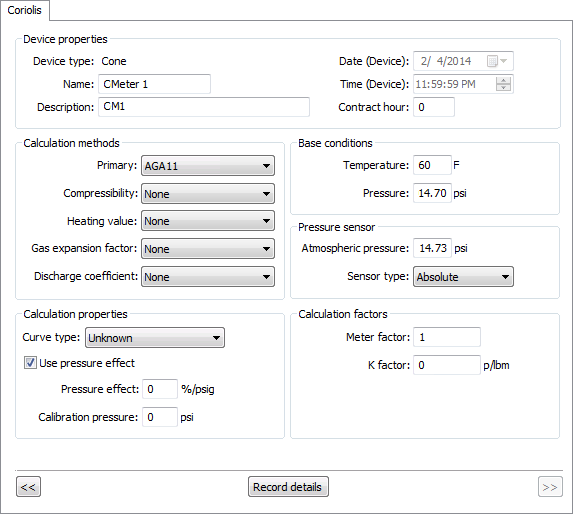
Click the Coriolis tab to access the property page to configure, edit, or view device-specific properties for the selected Coriolis meter.
See FMS Configuration Items for more information about specific configuration items shown on these property pages.
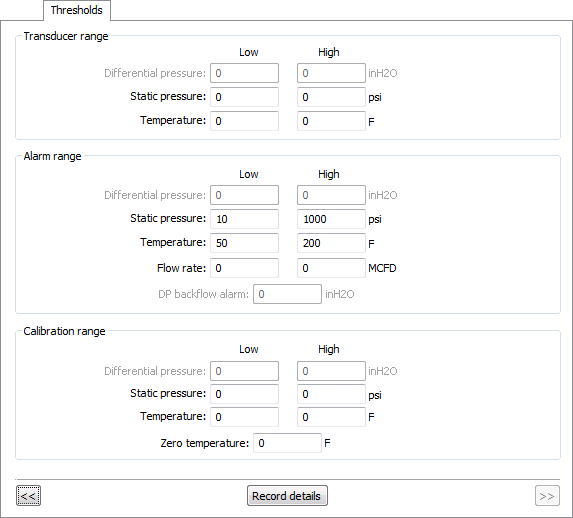
Click the Thresholds tab to access the property page to configure, edit, or view threshold properties for the selected Coriolis meter.
See FMS Configuration Items for more information about specific configuration items shown on these property pages.
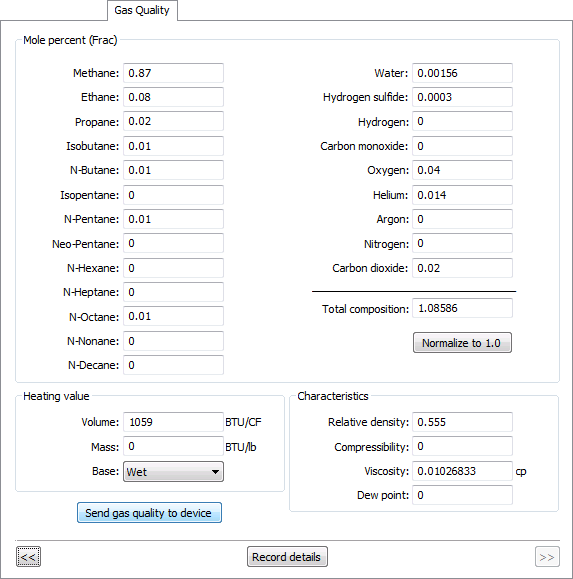
Click the Gas Quality tab to access the property page to configure, edit, or view gas quality properties for the selected Coriolis meter. The total composition value of the GQ items is also provided on this page. Optionally click Normalize to 1.0 or Normalize to 100% (dependent upon the applicable unit set) to normalize the data to a total value of 1.0 or 100%.
Note: Gas Quality composition totals can also be seen in the configuration log entry's Total Composition column in the Configuration control.
You can also optionally initiate a Send Gas Quality command from this page.
Note: The option to initiate a Send Gas Quality to Device command from the configuration record's Gas Quality property page is available unless a gas analysis record is also available. When a gas analysis record is available, data from that record is used for the send action instead, therefore the Send button on the configuration record's Gas Quality property page appears dimmed.
See Send Gas Quality for more information about the command.
See FMS Configuration Items for more information about specific configuration items shown on these property pages.
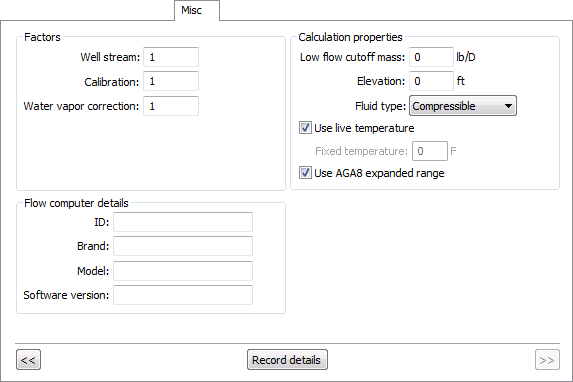
Click the Misc tab to access the property page to configure, edit, or view miscellaneous properties for the selected Coriolis meter.
See FMS Configuration Items for more information about specific configuration items shown on these property pages.
When editing records, each property page provides access to a pair of navigation buttons (<<, >>) and a Record details button at the bottom of the page. You can use this feature to verify auditing information and, if there are multiple records displayed within the current time window shown in the control, to quickly access contiguous configuration log entries.
When there are multiple records available within the time window, use the << and >> navigation buttons to navigate between contiguous records, and find one for which you want to view more concise information about the configuration log record change(s). As you navigate between records, the current record properties are reflected in the device properties area of the Coriolis property page.
Once the desired record is found, click Record details to access the Record Details dialog box where you can view details such as the date and time of the configuration log record change, the ID of the user who made the change, and optionally the audit category assigned and/or any comments entered regarding the change.
See Viewing Record Details for more information.

|
|
|

